 13d378f2ce
This PR reorganizes things slightly so that:

- Instead of a single multitool executable, `codex-exec-server`, we now
have two executables:
  - `codex-exec-mcp-server` to launch the MCP server
- `codex-execve-wrapper` is the `execve(2)` wrapper to use with the
`BASH_EXEC_WRAPPER` environment variable
- `BASH_EXEC_WRAPPER` must be a single executable: it cannot be a
command string composed of an executable with args (i.e., it no longer
adds the `escalate` subcommand, as before)
- `codex-exec-mcp-server` takes `--bash` and `--execve` as options.
Though if `--execve` is not specified, the MCP server will check the
directory containing `std::env::current_exe()` and attempt to use the
file named `codex-execve-wrapper` within it. In development, this works
out since these executables are side-by-side in the `target/debug`
folder.

With respect to testing, this also fixes an important bug in
`dummy_exec_policy()`, as I was using `ends_with()` as if it applied to
a `String`, but in this case, it is used with a `&Path`, so the
semantics are slightly different.

Putting this all together, I was able to test this by running the
following:

```
~/code/codex/codex-rs$ npx @modelcontextprotocol/inspector \
    ./target/debug/codex-exec-mcp-server --bash ~/code/bash/bash
```

If I try to run `git status` in `/Users/mbolin/code/codex` via the
`shell` tool from the MCP server:

<img width="1589" height="1335" alt="image"
src="https://github.com/user-attachments/assets/9db6aea8-7fbc-4675-8b1f-ec446685d6c4"
/>

then I get prompted with the following elicitation, as expected:

<img width="1589" height="1335" alt="image"
src="https://github.com/user-attachments/assets/21b68fe0-494d-4562-9bad-0ddc55fc846d"
/>

Though a current limitation is that the `shell` tool defaults to a
timeout of 10s, which means I only have 10s to respond to the
elicitation. Ideally, the time spent waiting for a response from a human
should not count against the timeout for the command execution. I will
address this in a subsequent PR.

---

Note `~/code/bash/bash` was created by doing:

```
cd ~/code
git clone https://github.com/bminor/bash
cd bash
git checkout a8a1c2fac029404d3f42cd39f5a20f24b6e4fe4b
<apply the patch below>
./configure
make
```

The patch:

```
diff --git a/execute_cmd.c b/execute_cmd.c
index 070f5119..d20ad2b9 100644
--- a/execute_cmd.c
+++ b/execute_cmd.c
@@ -6129,6 +6129,19 @@ shell_execve (char *command, char **args, char **env)
   char sample[HASH_BANG_BUFSIZ];
   size_t larray;

+  char* exec_wrapper = getenv("BASH_EXEC_WRAPPER");
+  if (exec_wrapper && *exec_wrapper && !whitespace (*exec_wrapper))
+    {
+      char *orig_command = command;
+
+      larray = strvec_len (args);
+
+      memmove (args + 2, args, (++larray) * sizeof (char *));
+      args[0] = exec_wrapper;
+      args[1] = orig_command;
+      command = exec_wrapper;
+    }
+
```
|
||
|---|---|---|
| .devcontainer | ||
| .github | ||
| .vscode | ||
| codex-cli | ||
| codex-rs | ||
| docs | ||
| scripts | ||
| sdk/typescript | ||
| .codespellignore | ||
| .codespellrc | ||
| .gitignore | ||
| .npmrc | ||
| .prettierignore | ||
| .prettierrc.toml | ||
| AGENTS.md | ||
| CHANGELOG.md | ||
| cliff.toml | ||
| flake.lock | ||
| flake.nix | ||
| LICENSE | ||
| NOTICE | ||
| package.json | ||
| pnpm-lock.yaml | ||
| pnpm-workspace.yaml | ||
| PNPM.md | ||
| README.md | ||
npm i -g @openai/codex
or brew install --cask codex
Codex CLI is a coding agent from OpenAI that runs locally on your computer.
If you want Codex in your code editor (VS Code, Cursor, Windsurf), install in your IDE
If you are looking for the cloud-based agent from OpenAI, Codex Web, go to chatgpt.com/codex
Quickstart
Installing and running Codex CLI
Install globally with your preferred package manager. If you use npm:
npm install -g @openai/codex
Alternatively, if you use Homebrew:
brew install --cask codex
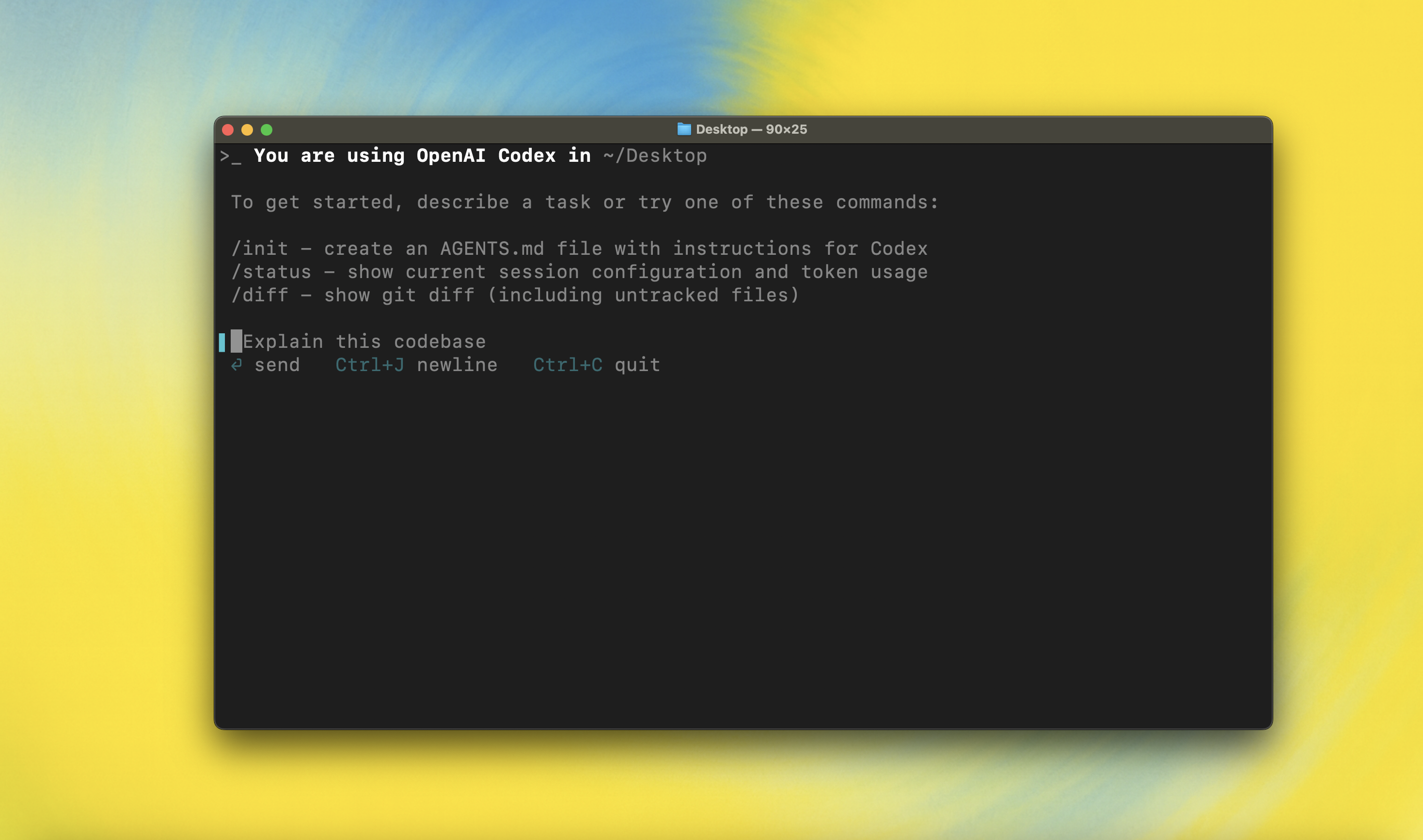
Then simply run codex to get started:
codex
If you're running into upgrade issues with Homebrew, see the FAQ entry on brew upgrade codex.
You can also go to the latest GitHub Release and download the appropriate binary for your platform.
Each GitHub Release contains many executables, but in practice, you likely want one of these:
- macOS
- Apple Silicon/arm64:
codex-aarch64-apple-darwin.tar.gz - x86_64 (older Mac hardware):
codex-x86_64-apple-darwin.tar.gz
- Apple Silicon/arm64:
- Linux
- x86_64:
codex-x86_64-unknown-linux-musl.tar.gz - arm64:
codex-aarch64-unknown-linux-musl.tar.gz
- x86_64:
Each archive contains a single entry with the platform baked into the name (e.g., codex-x86_64-unknown-linux-musl), so you likely want to rename it to codex after extracting it.
Using Codex with your ChatGPT plan
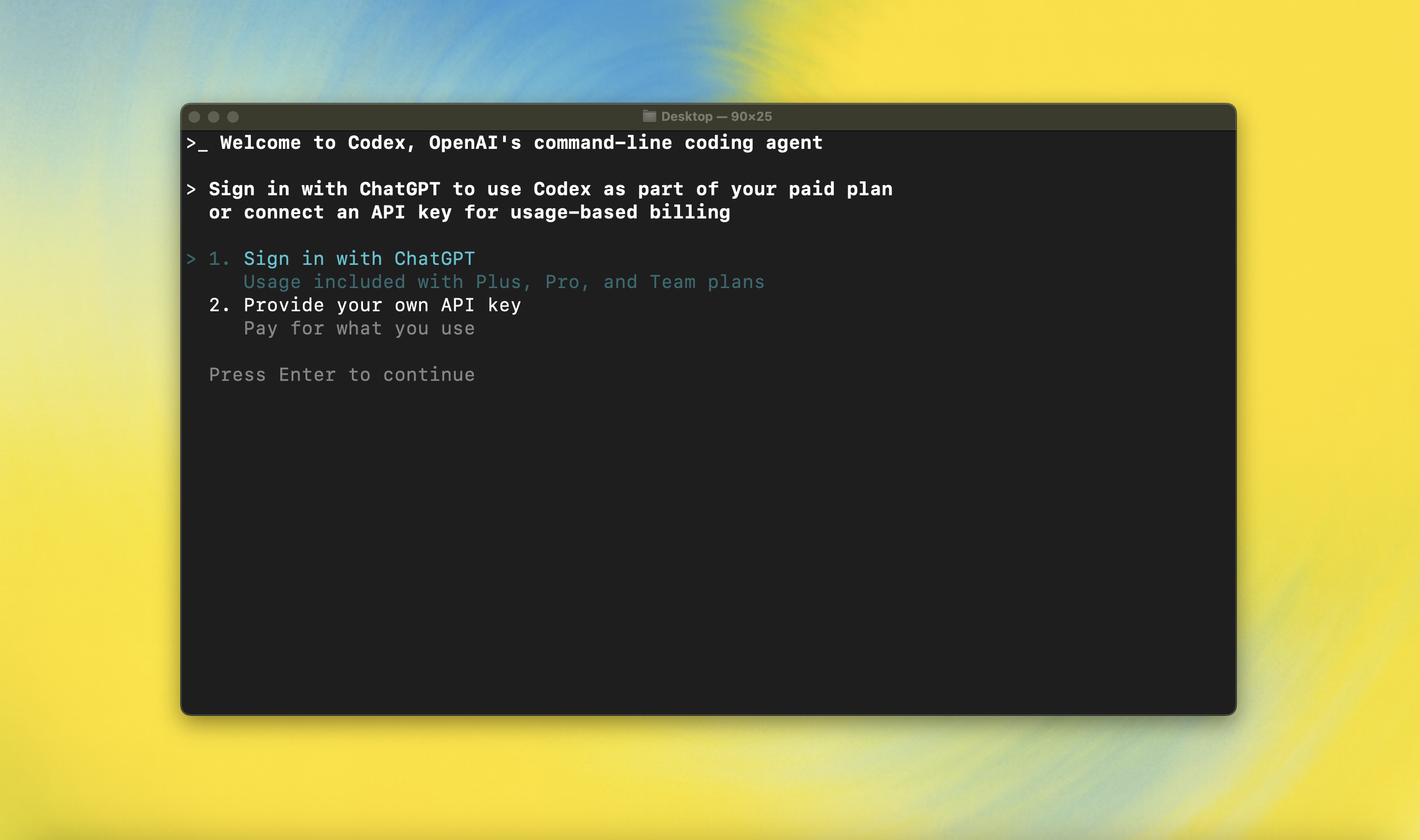
Run codex and select Sign in with ChatGPT. We recommend signing into your ChatGPT account to use Codex as part of your Plus, Pro, Team, Edu, or Enterprise plan. Learn more about what's included in your ChatGPT plan.
You can also use Codex with an API key, but this requires additional setup. If you previously used an API key for usage-based billing, see the migration steps. If you're having trouble with login, please comment on this issue.
Model Context Protocol (MCP)
Codex can access MCP servers. To configure them, refer to the config docs.
Configuration
Codex CLI supports a rich set of configuration options, with preferences stored in ~/.codex/config.toml. For full configuration options, see Configuration.
Docs & FAQ
- Getting started
- Configuration
- Sandbox & approvals
- Authentication
- Automating Codex
- Advanced
- Zero data retention (ZDR)
- Contributing
- Install & build
- FAQ
- Open source fund
License
This repository is licensed under the Apache-2.0 License.